
Troubleshooting
Fix registration and profile problems
Use the displayed error and a controlled retry to isolate account, validation, file, or browser problems.
Registration and profile problems usually come from the account identity, a required field, file validation, or stale browser state. Preserve the information already saved and troubleshoot one variable at a time. Do not create duplicate accounts or repeatedly upload the same file before checking the exact message.
Confirm the account first
Sign out and sign in with the intended email. Verify whether the workspace is Talent or Employer and whether an existing profile or company appears. If the account role is wrong, it cannot currently be switched through Settings; follow Choose or correct an account type.
If you used Google, explicitly choose the original Google identity. If you followed a claim link, confirm the link was expected, belongs to the RemoteFilipino domain, and has not already been used. Do not forward claim links or sign-in codes.
Find the first validation problem
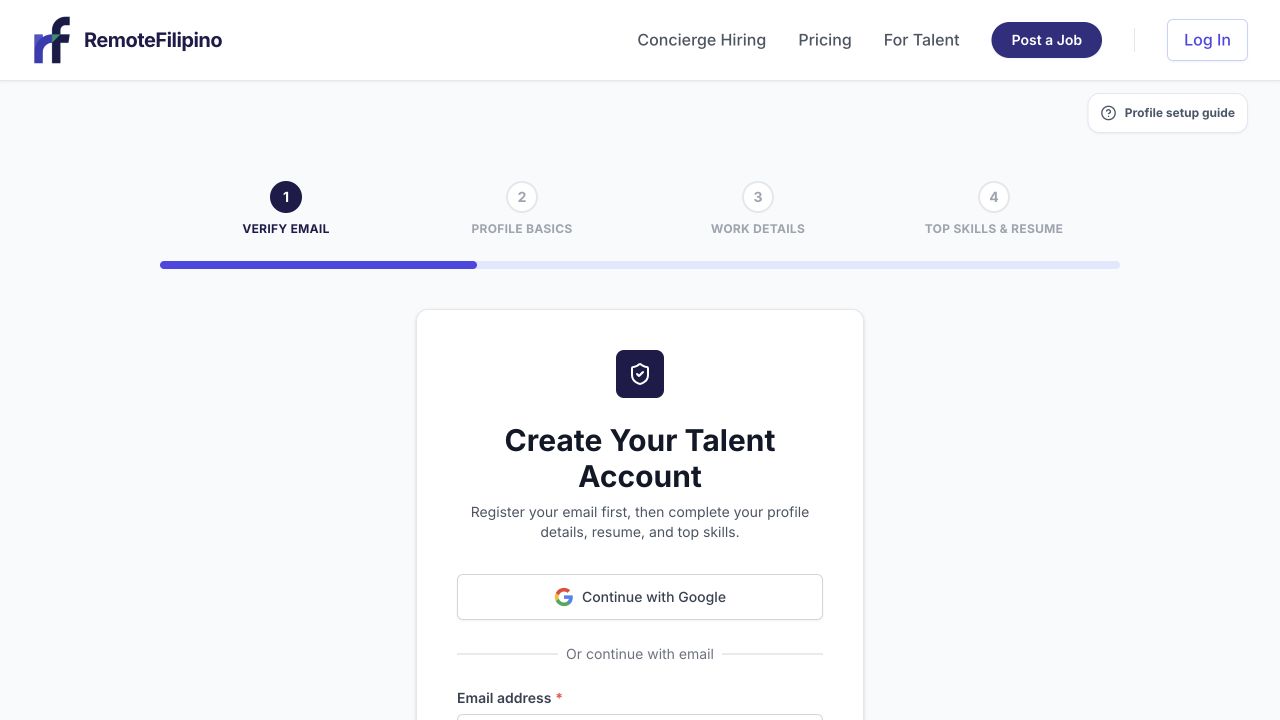
Use the step indicator to identify which part of registration still needs valid information.
Scroll from the top of the form and read the first highlighted field. Complete required text, select required choices, and use the requested URL, phone, date, or numeric format. Remove leading or trailing spaces and unusual copied formatting. Save one section at a time when the product supports it.
For URLs, include https:// and test them in a private window. For a company website or social link, remove tracking parameters. For experience dates, make sure the end date is not before the start date and that current roles are represented consistently.
Fix résumé and image uploads
Talent résumés must be PDF files and stay within the form limit; the current maximum is 5 MB. Export to a fresh PDF, use a short filename with letters, numbers, hyphens, or underscores, and try again on a stable connection. Do not merely rename a Word file to .pdf.
For photos or company logos, use a standard PNG or JPEG, reduce very large dimensions, and avoid uncommon color or metadata formats. Confirm the image shows the intended person or organization. Reload after a successful save to make sure the new asset appears.
Browser isolation sequence
- Copy unsaved long-form text to a safe local note.
- Reload once and sign back in if required.
- Disable content-blocking or form-filling extensions.
- Retry in a private window.
- Try a current version of another major browser.
- Use a stable network and avoid submitting the same action several times.
If the issue works in a private window, clear site data for RemoteFilipino rather than all browser history. Then retry the normal session.
Status or review appears stuck
Confirm every required section is saved and the profile reloads with the new information. Read any status notice fully. Review timing can vary, and submitting unchanged information repeatedly does not accelerate it. Record the date and time of the last completed change.
Collect useful evidence
Capture the full page around the error, not only a cropped red message. Record account email, profile or company link, section, attempted value type, file type and size, browser, device, approximate time, and whether private mode changed the result. Redact unnecessary résumé, identity, and contact information.
Contact [email protected] after the checks above. Never send a password, sign-in code, complete payment information, or confidential document merely to prove an upload failed.
Related guides
Was this article helpful?
Tell us whether this answered your question.