
Troubleshooting
Fix employer listing visibility problems
Verify the saved record, current status, public URL, filters, and account access before reposting.
A job can exist in the employer account without being visible to talent. The current status in Jobs controls what to check next. Do not create a duplicate until you know whether the original is incomplete, pending review, published, paused, closed, or limited.
Confirm the saved record
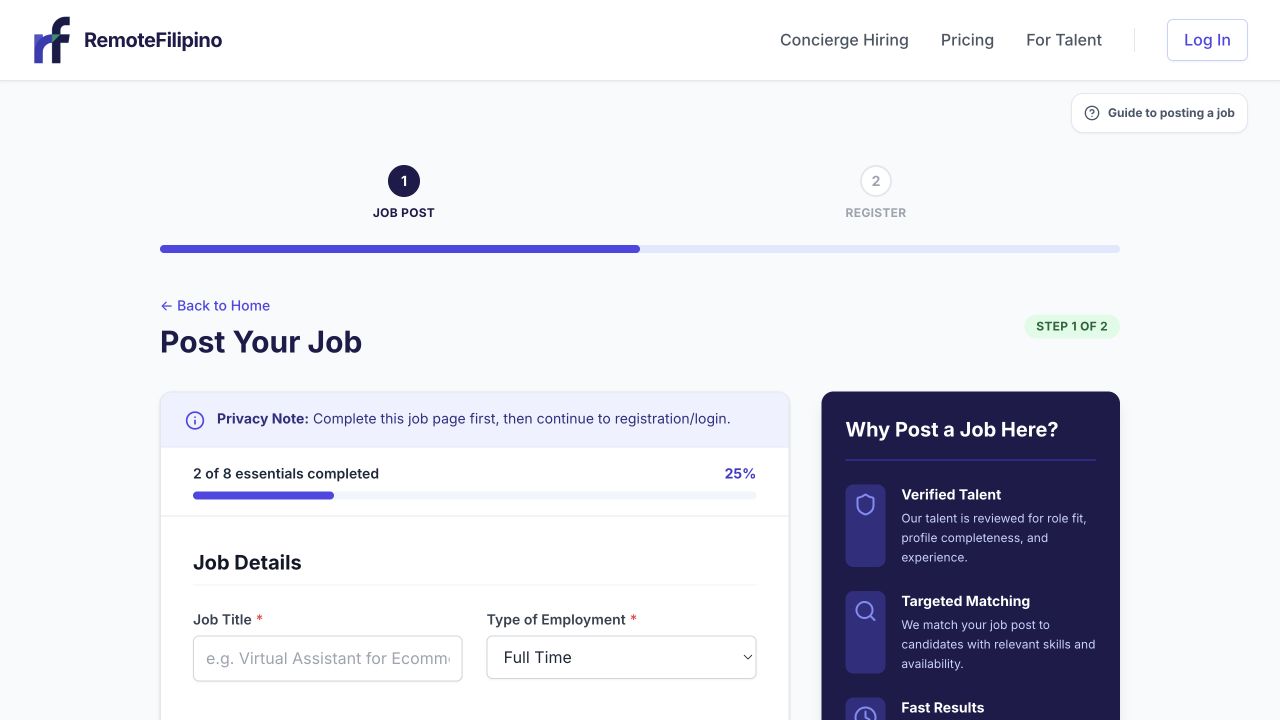
Confirm every required job field is complete before investigating listing visibility.
Sign in with the employer account that created the job and open Jobs. Search or filter for its title. If it is absent, confirm you did not post from another email or company account. Check whether the form was only saved locally or whether a submission confirmation was shown.
If submission was slow, reload Jobs before trying again. Duplicate listings divide applications and can trigger review or confusion. Preserve the title, approximate submission time, and any confirmation screen.
Interpret the current status
A draft or incomplete job is not public. A pending or review status requires the indicated processing or correction. A Published job is eligible to appear, while Paused and Closed jobs do not accept new applications. A closed listing may need a genuinely new job rather than reactivation.
Read any rejection or correction message completely. Check the company profile, title, responsibilities, requirements, schedule, compensation, links, screening questions, and safety-sensitive language. Remove deceptive claims, prohibited requests, unexplained money handling, or copied content unrelated to the company.
Test a Published job
- Copy the public job link from the employer view when available.
- Open it in a private window.
- Search Find Jobs using the exact title.
- Clear talent filters and try a broader keyword.
- Confirm the listing is still Published in the employer account.
- Check whether a job-wide application limit has stopped new submissions.
Publication does not guarantee a fixed search position, view count, or application volume. A job may be public but difficult to discover because the title is unusual or filters are narrow.
If the listing gets views but poor applications
Rewrite the title using candidate vocabulary. Put essential responsibilities near the top. State schedule, arrangement, compensation, and must-have tools clearly. Remove unnecessary years-of-experience thresholds and unrelated skill lists. Complete the company profile so talent can evaluate trust.
Use Talent search and invitations when current access permits, rather than waiting only for inbound applicants. An upgrade or managed service can add workflow support under its live terms, but cannot guarantee a reply or hire.
If status changed after editing
Material edits may affect review or visibility. Return to Jobs after saving and confirm the new state. Do not assume the previous published version remained live. Wait for the current guidance before editing repeatedly, because each change can make it harder to identify the version under review.
Collect evidence for support
Include company name, account email, job title and URL, original submission and most recent edit times, exact status, public-window result, search term and filters, browser, and screenshots of both employer status and public behavior. Do not include passwords, sign-in codes, or full payment data.
Related guides
Was this article helpful?
Tell us whether this answered your question.