
For talent
Create and complete your talent profile
Show employers credible evidence of what you can do, the roles you want, and how to contact you.
Your talent profile is the information an employer uses to evaluate an application or invitation. A complete profile does not guarantee interviews, but it removes avoidable uncertainty and helps the right employers understand your fit. Keep every field accurate and current.
Before you begin
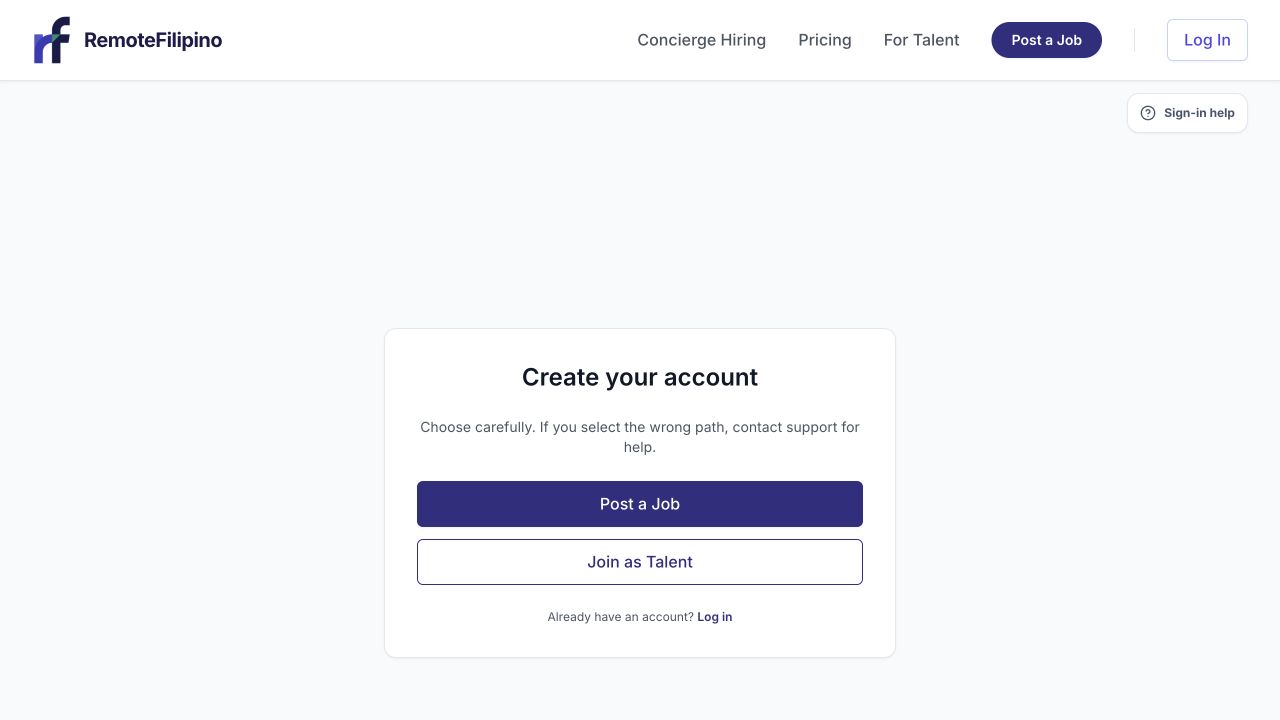
Start on the talent path so the platform creates the correct profile workflow.
Prepare a professional photo, a current PDF résumé, dates for recent roles, a short list of strongest skills, and your work preferences. Use an email and phone number you control. Your résumé must be a PDF and no larger than the limit shown by the uploader; the current form accepts files up to 5 MB.
Complete the profile in a useful order
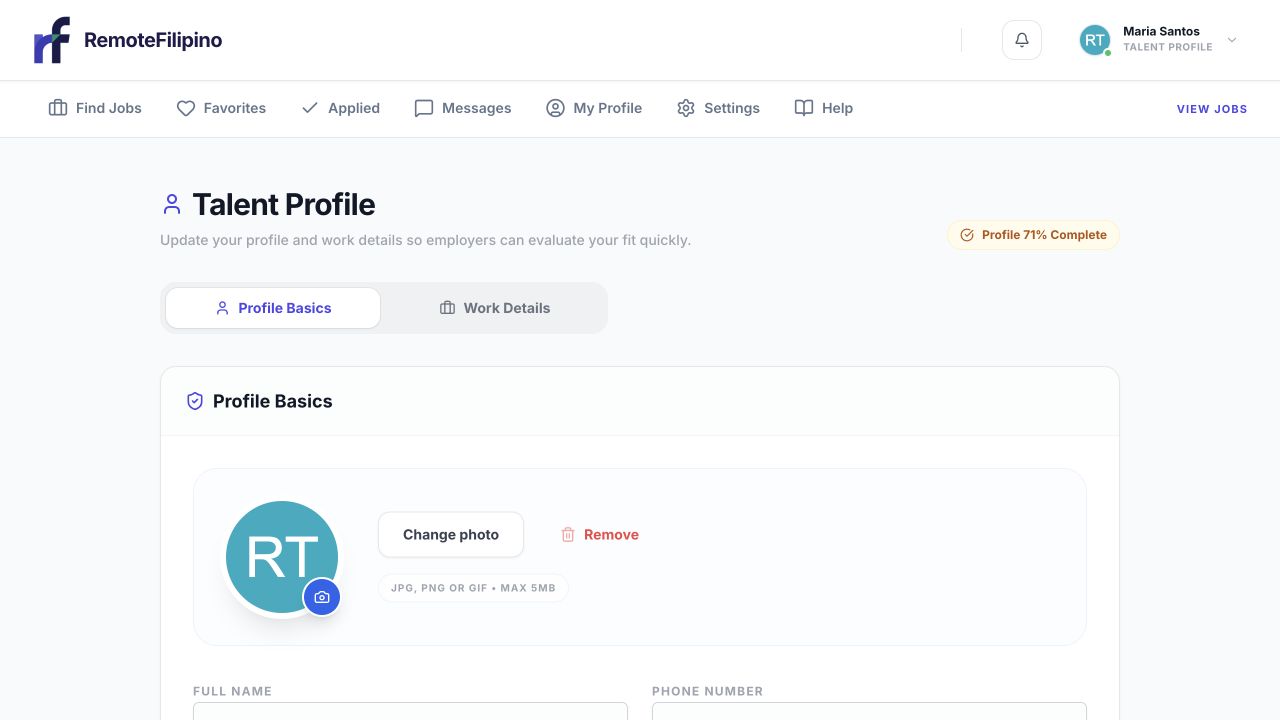
Use the talent collection for the next steps on review, job search, applications, and replies.
- Open My Profile.
- Add your real name and a professional headline that identifies the work you do.
- Write a summary covering your experience, strongest capabilities, and the kinds of problems you solve.
- Select only skills you can demonstrate. Put the most important, role-relevant skills first when ordering is available.
- Add recent experience with specific responsibilities, tools, and outcomes.
- Set work preferences, schedule, and other availability details honestly.
- Upload your current résumé and a clear head-and-shoulders photo.
- Save, reload the page, and verify the finished profile.
Write for an employer who is scanning
A useful headline says Customer support specialist · Zendesk and Shopify, not Looking for opportunities. A useful summary explains the environment, tools, and impact: ticket volume, response targets, bookkeeping systems, campaigns managed, executives supported, or processes improved. Use numbers only when they are truthful and explainable.
Do not paste sensitive identity documents, passwords, bank details, or confidential work samples into the profile. Remove private information from uploaded documents that an employer does not need for initial evaluation.
Keep the résumé and profile aligned
Employers may compare your profile with the attached résumé. Make sure employer names, role dates, seniority, and core skills do not contradict one another. A tailored profile can emphasize relevant experience, but it should not invent experience. If you replace the résumé, reopen the profile and confirm the new file is shown.
Common profile problems
- Save button does nothing: scroll to the first validation message and complete the required field.
- Résumé upload fails: confirm it is a PDF under 5 MB, shorten the filename, and retry on a stable connection.
- Photo looks wrong: upload a clear square or portrait image with your face visible and avoid very large files.
- Skills are missing: try the platform’s standard skill name; use the closest accurate option rather than adding unrelated terms.
- Changes do not appear: reload once, then sign out and back in before entering the same information again.
Review before applying
Open the profile as if you were an employer. Check spelling, dates, contact details, links, résumé, and the first two lines of the summary. Update the profile whenever your availability, role target, or experience changes.
If saving still fails, contact support with your account email, section name, browser, exact error, approximate time, and a screenshot. Do not email your password or sign-in code.
Related guides
Was this article helpful?
Tell us whether this answered your question.