
Troubleshooting
Fix application errors or a missing submission
Use the exact error to distinguish profile validation, point balance, job availability, network delay, and a true missing record.
Before retrying an application, identify whether the problem is profile completion, a required answer, Apply Points, job-wide availability, or a network response. Repeated submission during a slow request can make the history harder to interpret. Preserve your answers and check Applied first.
Start with the exact message
Read the full validation or status notice. A highlighted required field needs correction before submission. Application limit reached for this job means the listing has stopped taking more applications under its job-wide limit; it does not mean your personal Apply Points are broken. A paused or closed job is also unavailable even if the page was open earlier.
If the selected Apply Points amount is rejected, choose a whole number supported by the form and no greater than the current balance. Daily points replenish at the UTC day boundary up to the account cap. A local date change does not necessarily align with UTC.
Check profile requirements
Open My Profile and complete required identity, experience, skill, preference, and résumé fields. Confirm changes survive a reload. Résumés must be valid PDF files within the current upload limit, presently 5 MB. A file upload still processing or failing can block a complete application state.
Return to the job and answer every required screening question. Remove extremely long pasted content, unsupported characters from copied formatting, or a broken required link. Test portfolio or video links in a private window and do not submit confidential access credentials.
If submit appears to hang
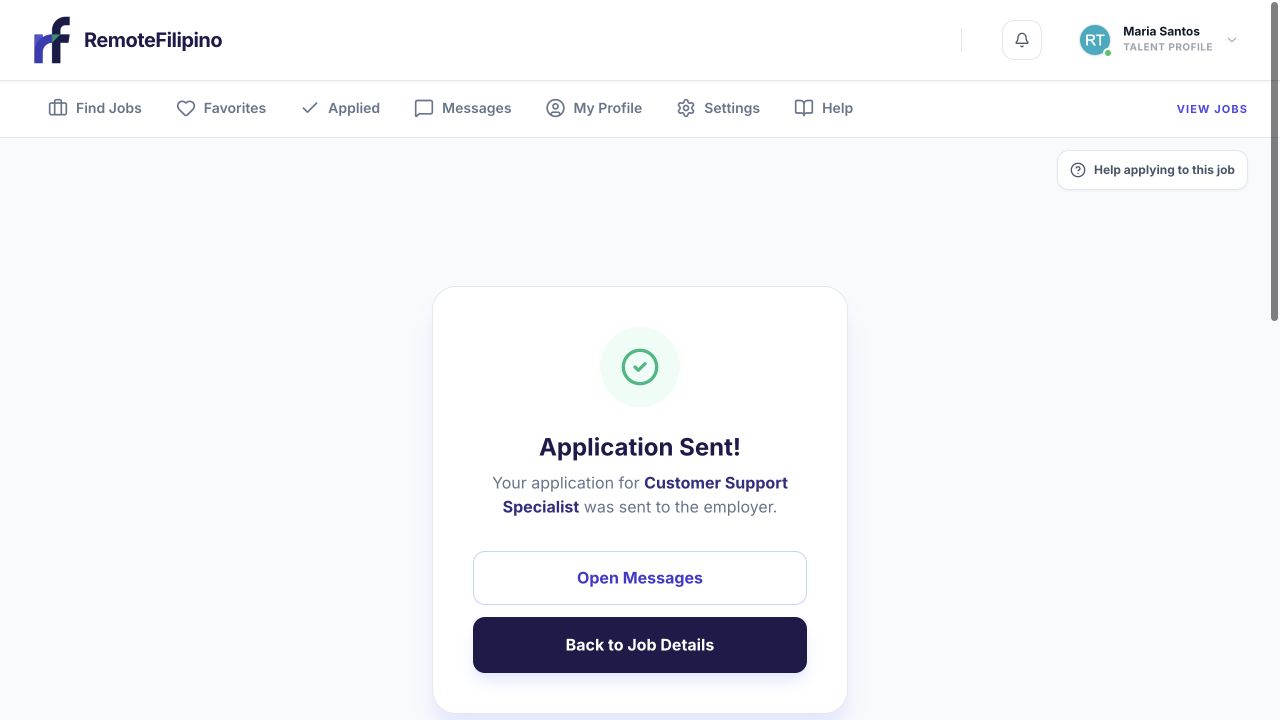
If you see this confirmation, do not submit again; verify the application in your account instead.
- Wait for the current request to finish.
- Open Applied in another normal navigation step.
- If the job appears, do not submit again.
- If absent, return to the job and check whether the point balance changed.
- Save the error and approximate time.
- Retry once on a stable connection or private window.
Do not keep clicking submit. Do not create a duplicate account. Do not ask the employer to treat an email as a platform application unless it explicitly chooses that route.
If points changed but Applied is empty
Reload both pages and sign back in with the same account email. Confirm you did not apply under another account. Capture the balance, job URL, amount selected, and time. This is a useful support case because the application and point transaction should be reviewed together.
If the job became unavailable
The employer may pause or close hiring, or the job may reach its application cap between opening the page and submitting. Support cannot promise to reopen it or place a late application. Save relevant public details for your own records and continue searching for suitable jobs. Never pay anyone claiming they can bypass the limit.
Browser and network checks
Disable extensions that modify forms, retry in private mode, and use a current browser. If the application includes a large file, verify upload completion before submitting. Avoid unstable public networks. If private mode works, clear RemoteFilipino site data in the normal browser rather than all browsing data.
Contact support when a valid application cannot be submitted after one controlled retry or when points and Applied history disagree. Include account email, job URL, point amount, balance before and after, exact error, time zone, browser, device, and screenshot. Never send a password or sign-in code.
Related guides
Was this article helpful?
Tell us whether this answered your question.