
For employers
Understand job review status and visibility
Distinguish drafts, pending review, published, paused, and closed jobs before troubleshooting visibility.
A completed job form and a publicly visible job are not always the same thing. The status shown in the employer Jobs area is the best place to understand whether talent can currently find and apply to a listing. Review paths can vary with the current account and publishing controls, so do not rely on an older email or screenshot.
Common listing states
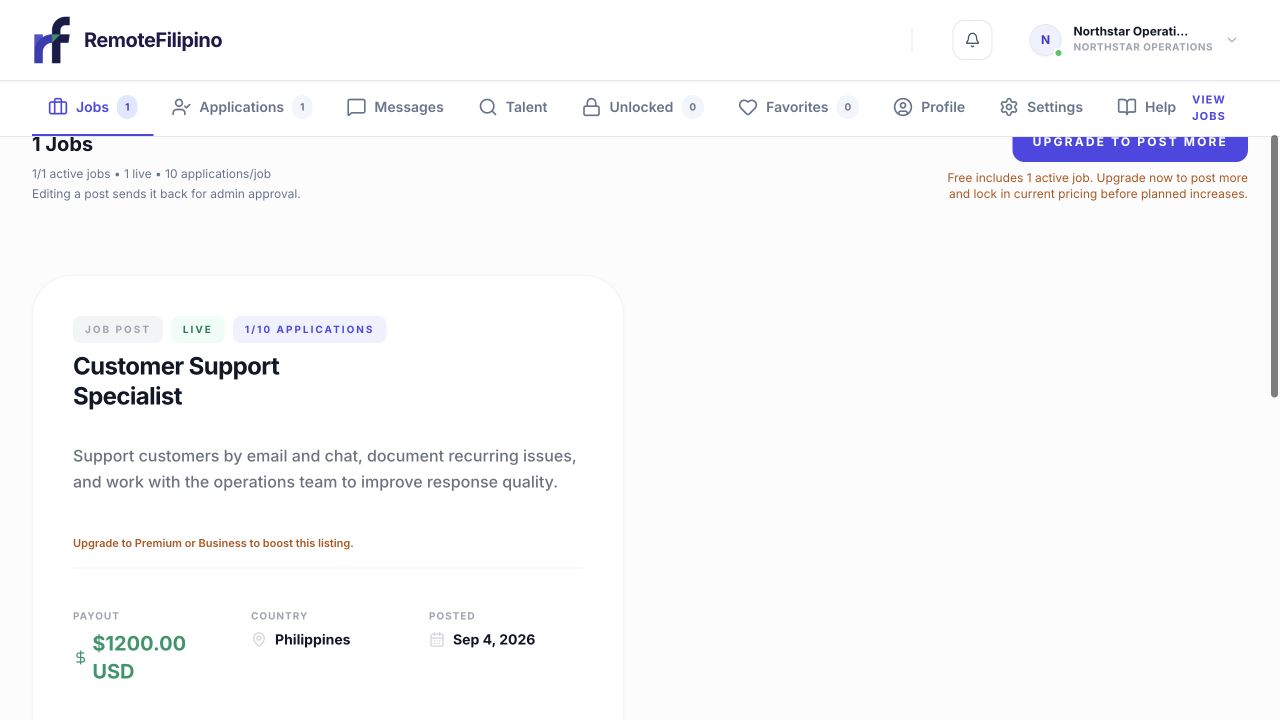
My Jobs is the authoritative place to check whether a listing is live and how it is performing.
- Draft or incomplete: the listing has not completed submission and is not available to applicants.
- Pending or in review: the job was submitted but still needs a platform decision or processing step.
- Published: the listing is eligible to appear in talent search and accept applications, subject to its application availability.
- Paused: the employer has temporarily stopped new applications.
- Closed: hiring is ended and the listing no longer accepts applications. A closed job may require a new listing rather than reactivation.
The exact label in the product controls. If an email and the Jobs screen differ, reload the authenticated Jobs screen and use its current status before acting.
What review looks for
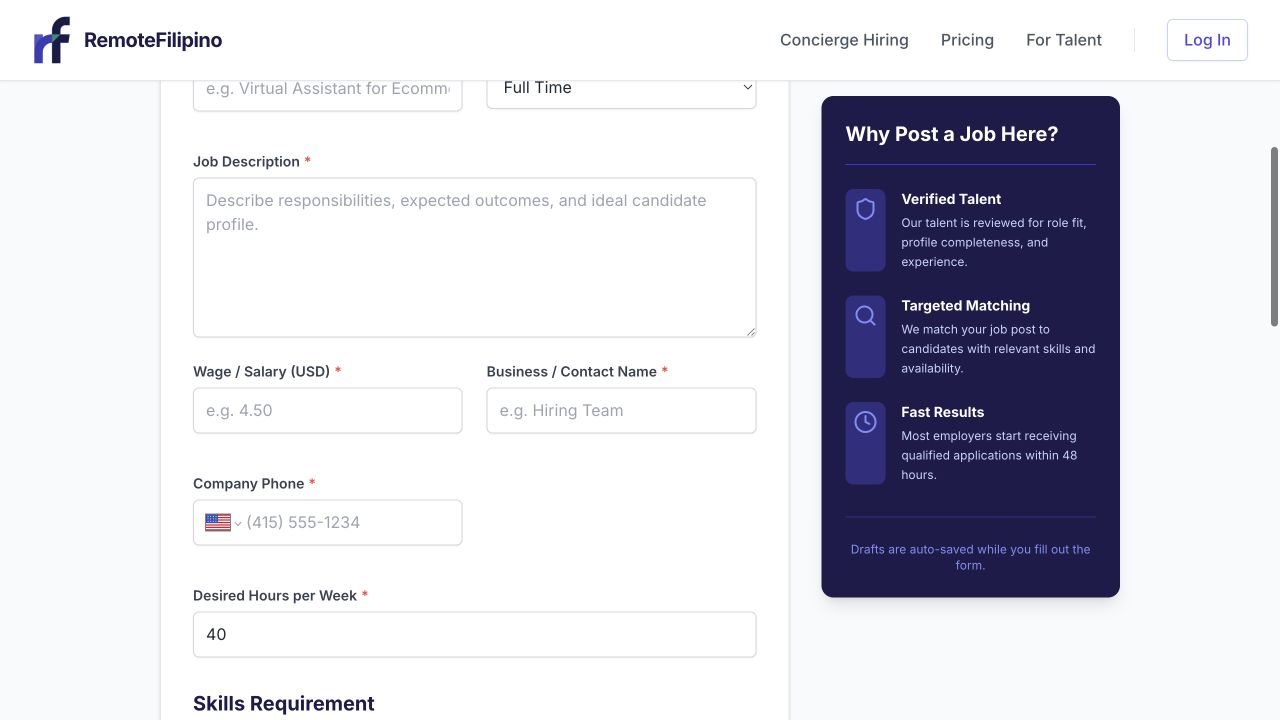
Complete, specific job details reduce avoidable review questions and improve listing quality.
Review can consider whether the company and role are understandable, required fields are complete, compensation and schedule are coherent, and the listing avoids deceptive, discriminatory, unsafe, or prohibited requests. It may also flag duplicates, copied content, external links, or claims that need clarification. Review is not an endorsement of the employer or a guarantee of applications.
If a job is pending
Wait for the current on-screen review guidance before submitting another version. Confirm your company profile is complete and the listing has a normal title, specific responsibilities, realistic requirements, clear schedule, accurate compensation, and no unsafe instructions. Monitor the account email and spam folder for a request.
Repeatedly creating the same job can split applications and make the intended listing harder to identify. Edit the existing record when the product allows it or contact support if a correction cannot be made.
If a published job is hard to find
Open the public or talent-facing link in a private window. Search using the exact title and then a broader keyword. Clear all talent-side filters. Confirm the listing is still Published rather than Paused or Closed and that a job-level application limit has not stopped new applications. Search ordering can vary and publication does not guarantee a fixed placement.
A listing may be public but return few applications because its title is unusual, requirements are extremely narrow, schedule or compensation is unclear, the employer profile lacks context, or demand is limited. Improve the source information and use direct talent browsing or invitations where available.
Pausing and closing
Pause a role when hiring is temporarily on hold and you may resume it. Close it when the opening has ended. Review existing applicants before closing and communicate with active candidates where appropriate. Do not leave stale jobs published only to collect profiles.
When to contact support
Contact support when a submitted listing is absent from Jobs, the status remains unchanged beyond the guidance shown, a rejection reason is unclear, or a Published page returns an error. Include company name, account email, job link or title, submission and edit times, status text, browser, and screenshot. Do not submit payment details or sign-in codes.
Related guides
Was this article helpful?
Tell us whether this answered your question.