
For employers
Manage jobs and current account limits
Keep listings accurate and use live account and pricing screens as the source of truth for changing limits.
Use the employer Jobs area to manage each listing throughout its hiring lifecycle. It shows the current status and available actions for your account. Because offers, entitlements, and limits can change, this guide deliberately does not publish fixed plan names, prices, job counts, or application caps. Check Pricing, the authenticated account, and the checkout terms you accepted.
Keep one reliable record per opening
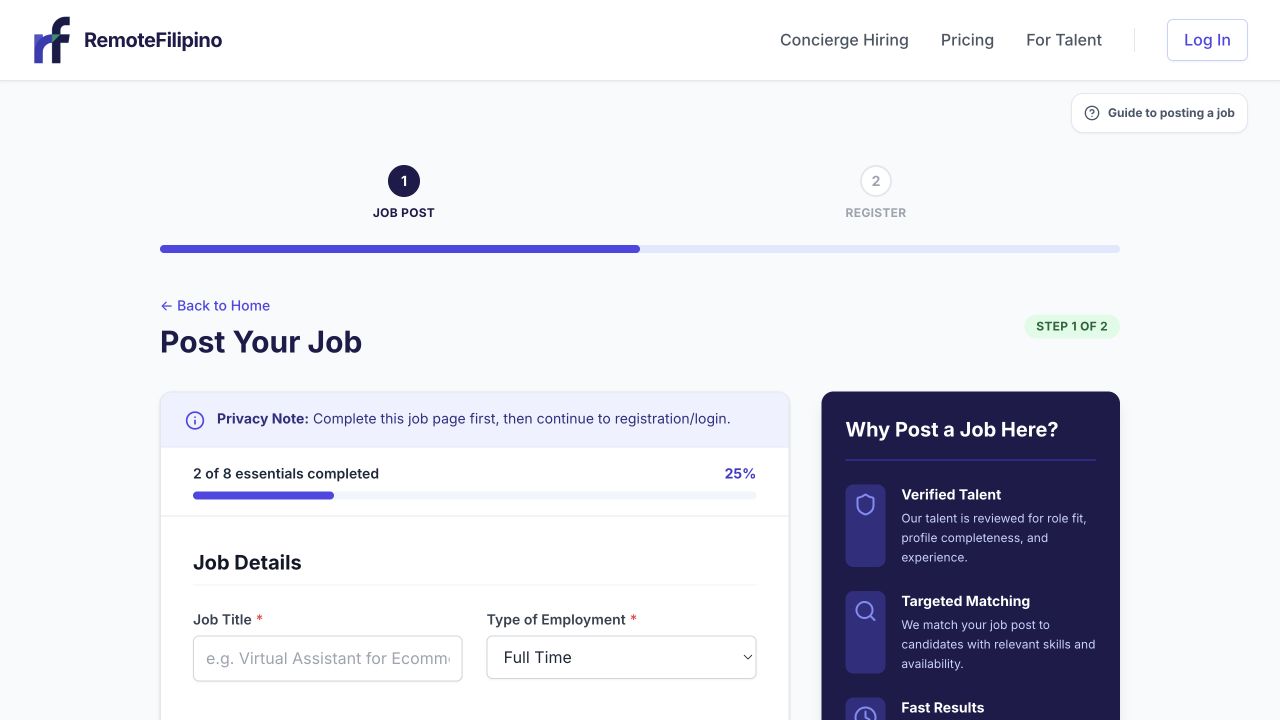
Create one clear listing per opening so its status, applicants, and results remain easy to manage.
Create a listing for a real, current vacancy and keep it accurate. Use a searchable title, explain the role, and update details when responsibilities, schedule, compensation, or requirements change. Avoid duplicating the same opening to work around a review state or account limit; duplicates confuse candidates and divide application history.
Open a listing from Jobs to review its status, applications, and available controls. The product may allow you to edit, publish, pause, or close depending on the listing state. A closed listing represents ended hiring and may not be eligible for reactivation. Create a new job only when there is a genuinely new or reopened vacancy and the product directs you to do so.
Choose pause or close deliberately
Pause when hiring is temporarily on hold and you expect to continue. Talent should not be encouraged to submit while no one is reviewing. Close when the position is filled, canceled, or no longer active. Before closing, review active conversations and communicate a decision where appropriate.
Changing important listing information can affect status or require review. After editing, return to Jobs and confirm the status instead of assuming the previous public state remained unchanged.
Understand application limits
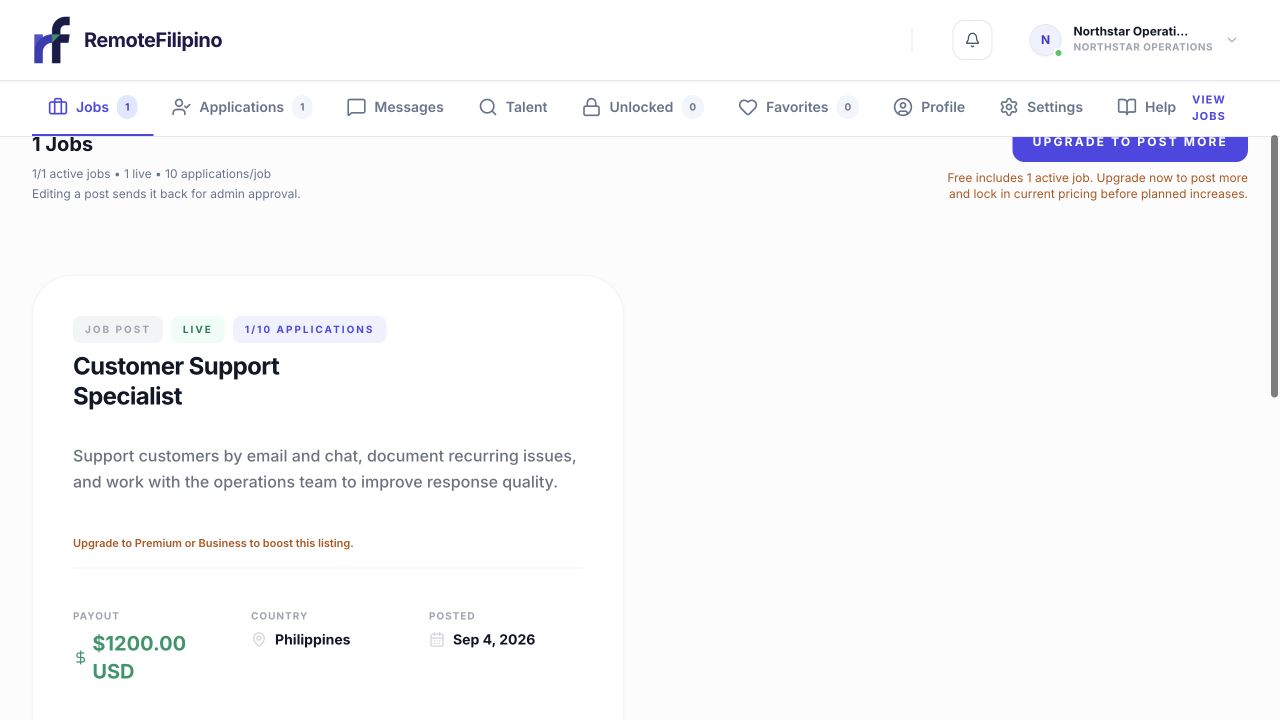
Use My Jobs to review listing status, application activity, and the actions available for each opening.
A current employer offer may limit how many applications a job can accept or how many listings or actions an account can use. When a job reaches its application limit, new talent may see that the listing is no longer accepting submissions even though the record still exists. Existing applications remain part of the employer workflow.
Do not quote an old limit to candidates or rely on a screenshot from a prior offer. Open Pricing for current public options and inspect the authenticated account for the access attached to your purchase or subscription. The accepted checkout terms and billing portal remain authoritative for an existing transaction.
If you need more hiring capacity
First close or pause stale jobs and confirm which openings are active. Then review the current upgrade or access options shown in the product. An upgrade can change available actions, but it does not guarantee application volume, candidate replies, or hiring outcomes. The quality and competitiveness of the role still matter.
Monthly listing hygiene
- Confirm every Published job is actively hiring.
- Update schedule, compensation, responsibilities, and contact ownership.
- Review unprocessed applications and active messages.
- Pause jobs that are temporarily blocked.
- Close filled or canceled roles.
- Check current account access before planning new openings.
Troubleshooting
If an expected action is missing, confirm you are signed into the employer account that owns the listing, reload the Jobs page, and check the current status and account access. If payment recently changed, do not pay again until you confirm whether the first checkout succeeded.
Contact support with company name, account email, listing URL, expected action, current status, relevant transaction reference, browser, time, and screenshot. Mask complete card or bank details.
Related guides
Was this article helpful?
Tell us whether this answered your question.