
For employers
Unlock talent contacts and resolve access problems
Know what one unlock provides, what it cannot guarantee, and how to troubleshoot credit or contact-data issues.
A contact unlock gives an eligible employer access to the contact information currently available for one talent profile. It does not buy an application, reply, interview, meeting, agreement, or hire. Review the full profile first and use credits only for people who plausibly fit an active role.
Before unlocking
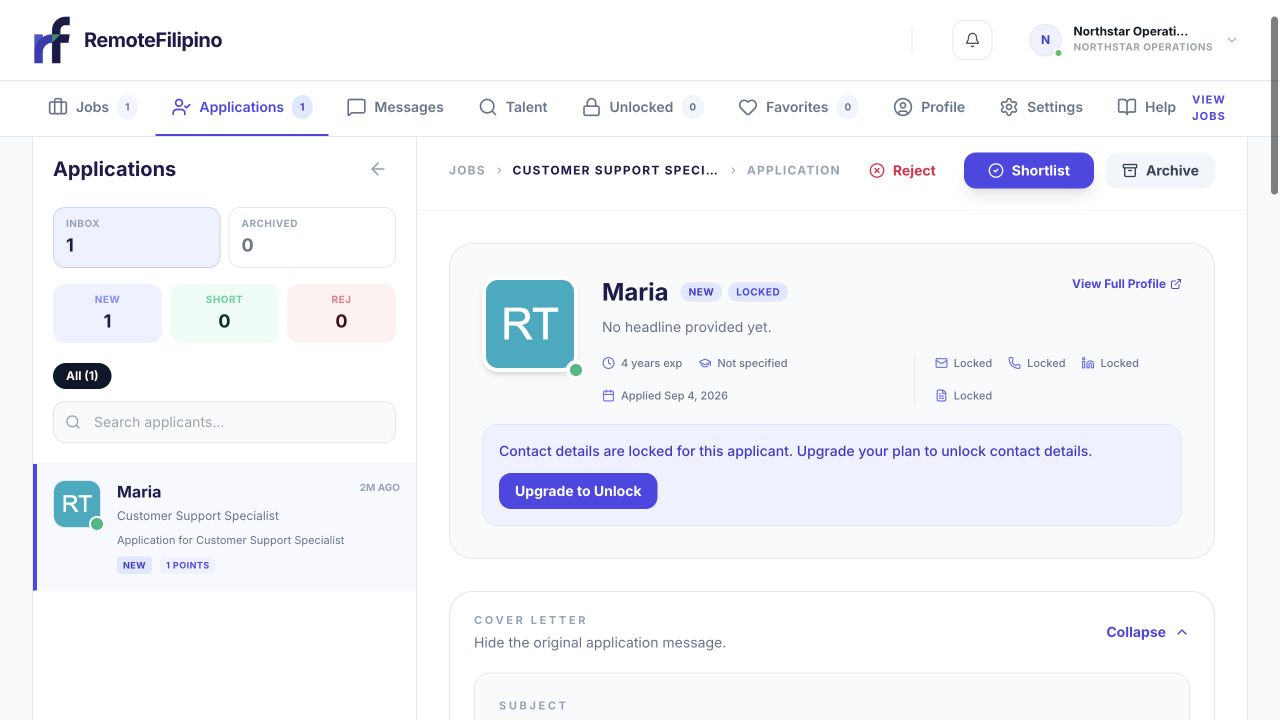
Review the application and profile fit before deciding whether to unlock contact access.
Confirm you are signed into the correct employer account, the company profile is complete, and your current access shows an available unlock action. Read the candidate’s headline, experience, skills, work preferences, and résumé evidence. Compare the profile with the essential criteria for a real opening.
Check the current Pricing page and authenticated account for live access details. Fixed credit quantities and plan rules are intentionally not repeated here because offers change. The terms shown at checkout govern the account’s purchase or subscription.
Unlock a profile
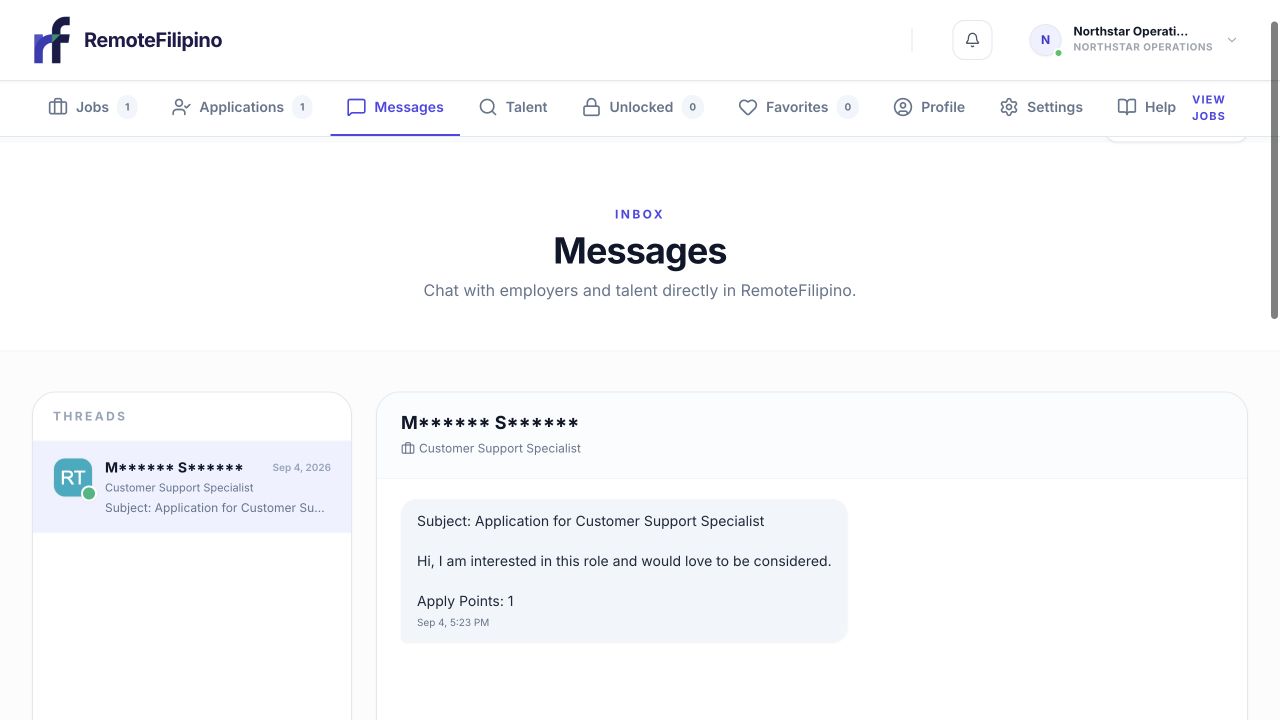
A restricted reply area explains why an existing inbound message may not yet be replyable.
- Open the talent profile from Talent, Applications, Favorites, or another eligible employer workflow.
- Review the available evidence and confirm it is the intended person.
- Select the contact or unlock action.
- Read any confirmation showing the effect on current credits.
- Confirm once and wait for the profile to update.
- Use the revealed contact details only for legitimate hiring related to the described role.
Reopening the same profile after a successful unlock should not consume another credit for that employer. Find previously unlocked people in Unlocked. If the page responds slowly, check Unlocked and the current credit balance before clicking again or purchasing more access.
What contact information may appear
The platform can reveal the contact fields the talent account has provided and that are available under the current workflow. A profile may not contain every possible channel, and a field can be outdated or mistyped. An unlock is access to available data, not a certification that every email, phone, or external link is deliverable.
Contact the person with context: identify yourself, company, role, and why their experience appears relevant. Avoid generic mass outreach. Keep candidate information within the hiring team, use reasonable security, and delete exports when no longer needed under your privacy obligations.
If the contact does not respond
Verify the address or number was copied correctly and send one concise follow-up through an appropriate channel. Check whether there is an active platform conversation. A lack of response does not automatically indicate a technical fault or create a guaranteed replacement credit. Talent may be unavailable, decline silently, or prefer another channel.
Troubleshooting an unlock
- Action unavailable: check account role, current access, and whether this profile was already unlocked.
- Credit changed but details did not appear: reload once and check Unlocked before retrying.
- Contact is invalid: capture which field failed and the non-sensitive delivery error.
- Wrong person unlocked: stop outreach and contact support; do not circulate the data.
- Payment succeeded but credits are absent: do not pay again until support verifies the first transaction.
Contact support with company name, account email, talent profile link, job context, balance before and after, approximate time, browser, and screenshot. Include a transaction reference when relevant, but mask complete card and banking details.
Related guides
Was this article helpful?
Tell us whether this answered your question.