
For employers
What happens after payment or access expiry
Verify confirmation, account access, credits, renewal state, and what remains available when paid access ends.
After checkout, payment processing and account access must be connected to the same employer identity. Most problems are resolved by confirming the receipt, account email, and current billing state before paying again. The exact offer and duration are shown during checkout and in the billing portal; this article does not repeat changeable prices or plan limits.
Immediately after payment
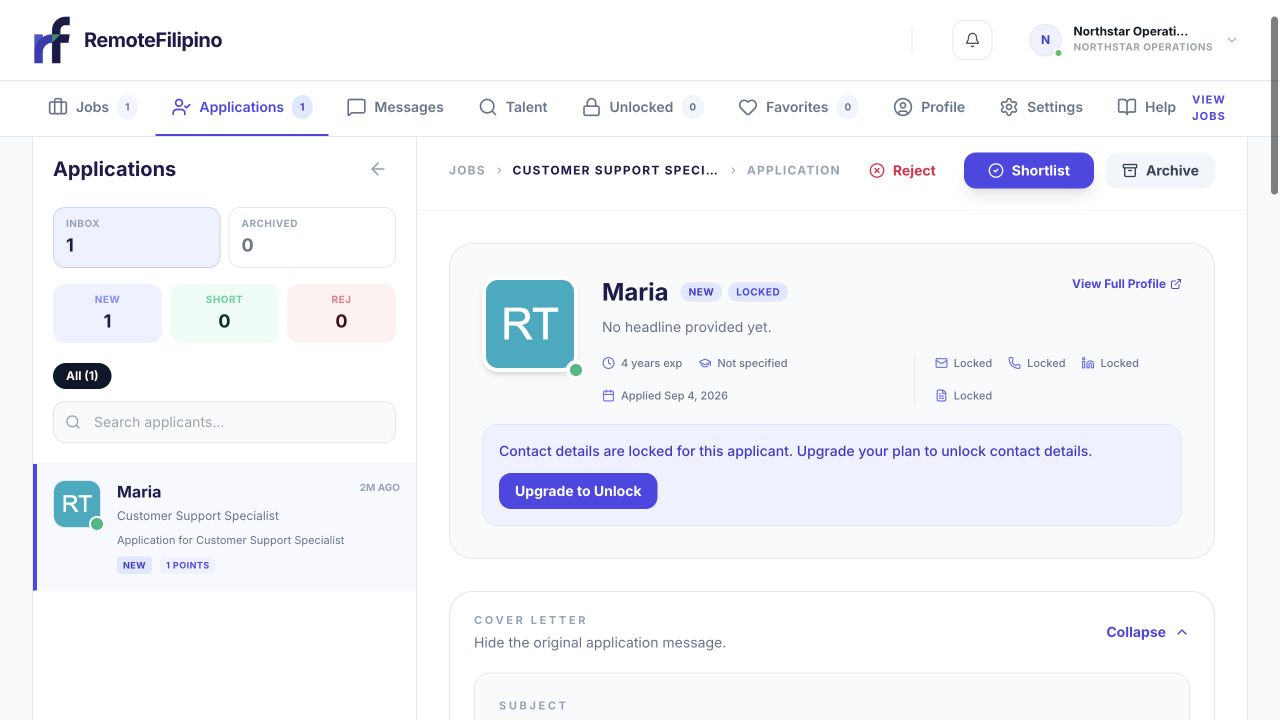
The applicant workspace shows whether contact and reply access is currently available.
Wait for the official confirmation screen and email. Save the receipt or transaction reference. Return to the employer workspace using the same account email used during checkout, then check Jobs, Applications, Talent, Unlocked, and Settings for the access relevant to the selected offer.
If the page appears unchanged, reload once and sign out and back in with the purchase email. Do not open another account or submit payment again until you know whether the transaction succeeded. Bank authorization, a receipt, and active product access are related signals but may not update at exactly the same moment.
Confirm the account state
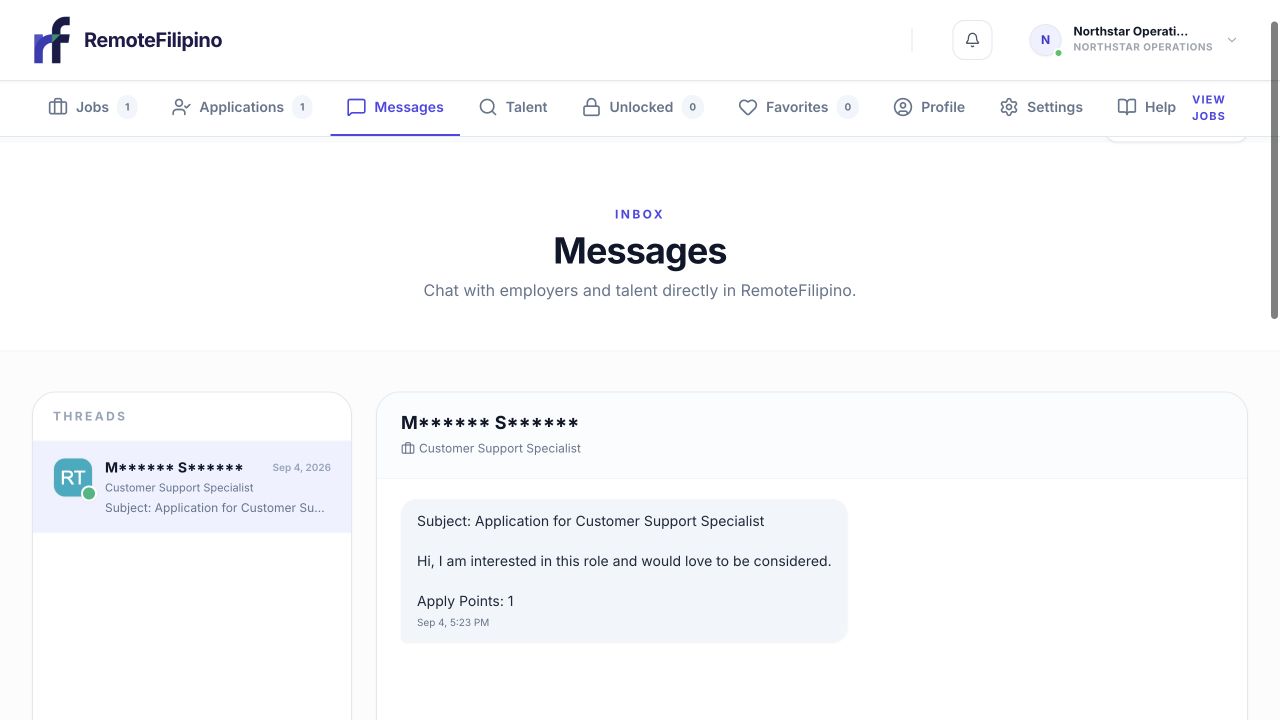
A restricted reply area is an account-access state, not proof that the applicant or message disappeared.
Open Settings and the billing area. Verify the displayed subscription or access status, billing interval, renewal or expiry date, payment method, and invoices. Check any contact-credit balance in the employer workspace. The authenticated account and billing portal are the correct sources for an existing purchase; Pricing describes current public options and may differ from an older accepted offer.
If someone else completed checkout, confirm they used the email connected to the employer account and that you are not signed into a different company profile. Do not share credentials or email sign-in codes between team members.
Use access before it ends
Review applications promptly, keep jobs accurate, compare profiles before unlocking, and contact suitable talent with context. A purchase does not guarantee applications, replies, interviews, or hires. Your team must still operate the workflow and evaluate candidates.
When renewal is canceled, paid access usually remains available through the period shown in the billing portal. When a one-time access period ends, restricted actions may stop. Previously submitted applications and account records can remain visible differently from actions that require active access. The product and accepted terms control the exact behavior.
Credits and unlocked contacts
Use the current credit balance shown in the account. Previously unlocked people should be organized under Unlocked. Unused credits and contact access at expiry depend on the accepted terms and current product behavior, so verify the account before making assumptions. Do not promise your team that credits roll over unless the live terms explicitly say so.
If payment and access disagree
- Confirm the payment was completed rather than only authorized or abandoned.
- Find the official receipt and checkout email.
- Sign in with that exact email.
- Reload Settings and the relevant employer page.
- Check whether a cancellation, failed renewal, dispute, or expiry is shown.
- Capture the product state before trying another purchase.
Contact support with company name, account email, transaction reference, purchase time and currency, offer label shown on the receipt, expected action, actual screen, and screenshot. Mask full card numbers, banking details, and billing addresses unless specifically required through a secure process.
Related guides
Was this article helpful?
Tell us whether this answered your question.