
Account
Manage notifications and missing emails
Check account settings, inbox filtering, and the in-product source before assuming an email was never sent.
RemoteFilipino uses in-product status and email to help you follow important account and hiring activity. Not every product change generates an email, and email delivery does not replace the authenticated workspace. Always check the relevant Jobs, Applications, Applied, Messages, profile, or billing page for the current record.
Keep the destination accurate
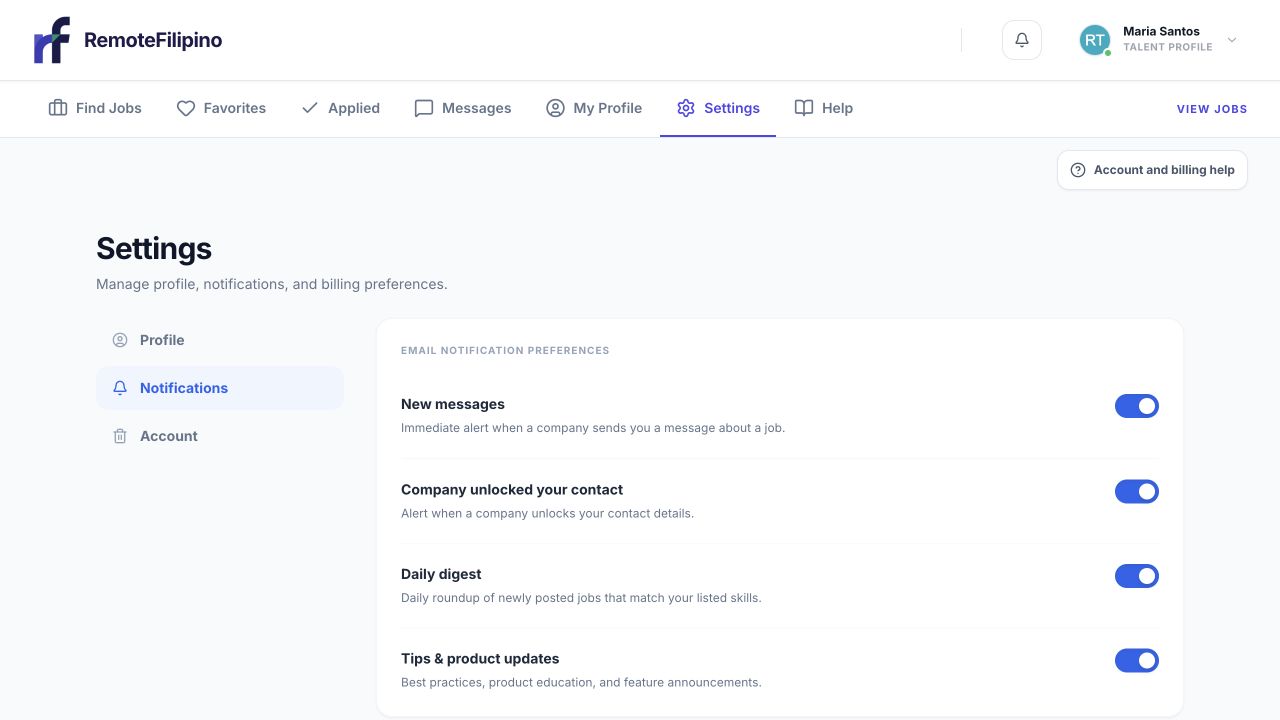
Each notification category can be reviewed from the Notifications section in Settings.
Open Settings and confirm the account email belongs to you or the organization and is monitored. Talent should also keep their profile contact details current; employers may use available contact information after the appropriate connection or unlock. Correct a typo promptly rather than creating a second account.
If the product offers notification preferences, enable only the messages you want and save. Transactional or security messages may still be sent when necessary to operate or protect the account. Marketing preferences do not necessarily control sign-in codes, billing receipts, job status, or direct conversation notices.
If an expected email is missing
- Check spam, promotions, quarantine, and any focused inbox.
- Search for RemoteFilipino and the relevant subject rather than only the sender name.
- Confirm the email displayed in the account.
- Ask a company mail administrator whether automated messages are blocked.
- Add the legitimate RemoteFilipino sender to allowed contacts.
- Reload the in-product page to check the current status.
- Request a new authentication message only after waiting, then use the newest code.
Do not repeatedly request sign-in messages in a short period. A newer code can invalidate an older one, and rate protection may slow further requests. Never share the code with anyone, including support.
Hiring notifications
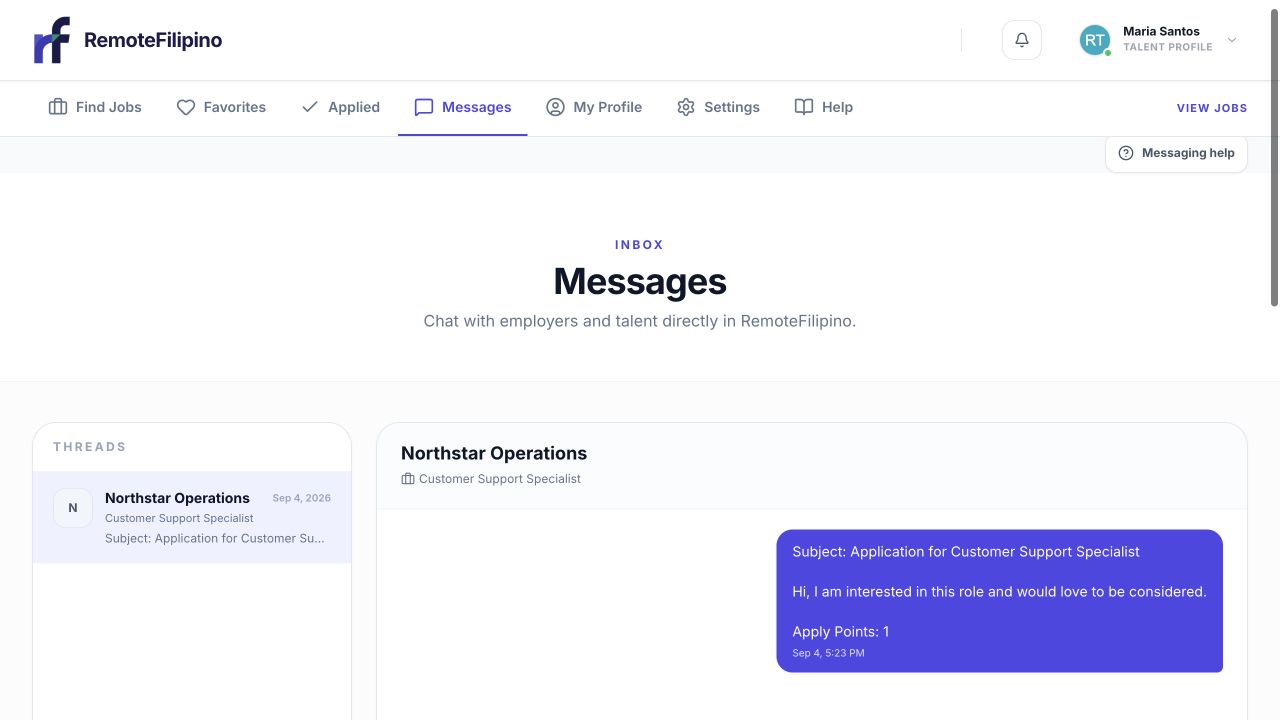
In-app conversation history is the best place to verify whether a message was delivered.
A talent application should be confirmed in Applied. Employer applications appear in Applications. Conversations appear in Messages. A missing email does not necessarily mean the application or message record is missing. Conversely, an email link may refer to a job that has since been paused or closed; use the current authenticated status.
Employers and talent control their own response times. A lack of a new-message notification does not mean another user is required to reply, and support cannot generate an employer response. Keep searching or reviewing while an active process continues.
Billing and account-security email
Receipts, payment failures, subscription changes, and deletion notices require extra care. Verify them by signing in through the normal site rather than using an unexpected message link. Check Settings and the billing portal. RemoteFilipino staff will not ask you to reveal a password, sign-in code, or full card number to confirm an email.
If you receive an account change or deletion message you did not request, do not approve it. Sign in through the known website, protect the email account, and contact support. Preserve the suspicious message headers or screenshot without forwarding active malicious links to other people.
When to contact support
Contact support if the in-product record shows an event but repeated expected emails never arrive, or if a security message is unexpected. Include the account email, type of notification, triggering action, approximate time, inbox provider, and screenshot of the product status. Do not include sign-in codes or full payment data.
Related guides
Was this article helpful?
Tell us whether this answered your question.