
Account
Use billing settings and the customer portal
Use the live checkout, account, and billing portal to verify the terms attached to an employer purchase.
Billing actions for employer products are available from the account and customer portal when the current purchase supports them. Use these authenticated screens to confirm subscription status, billing interval, renewal or expiry, payment method, and invoices. This guide does not state fixed prices or plan limits because they change; use Pricing and the terms accepted at checkout.
Open billing
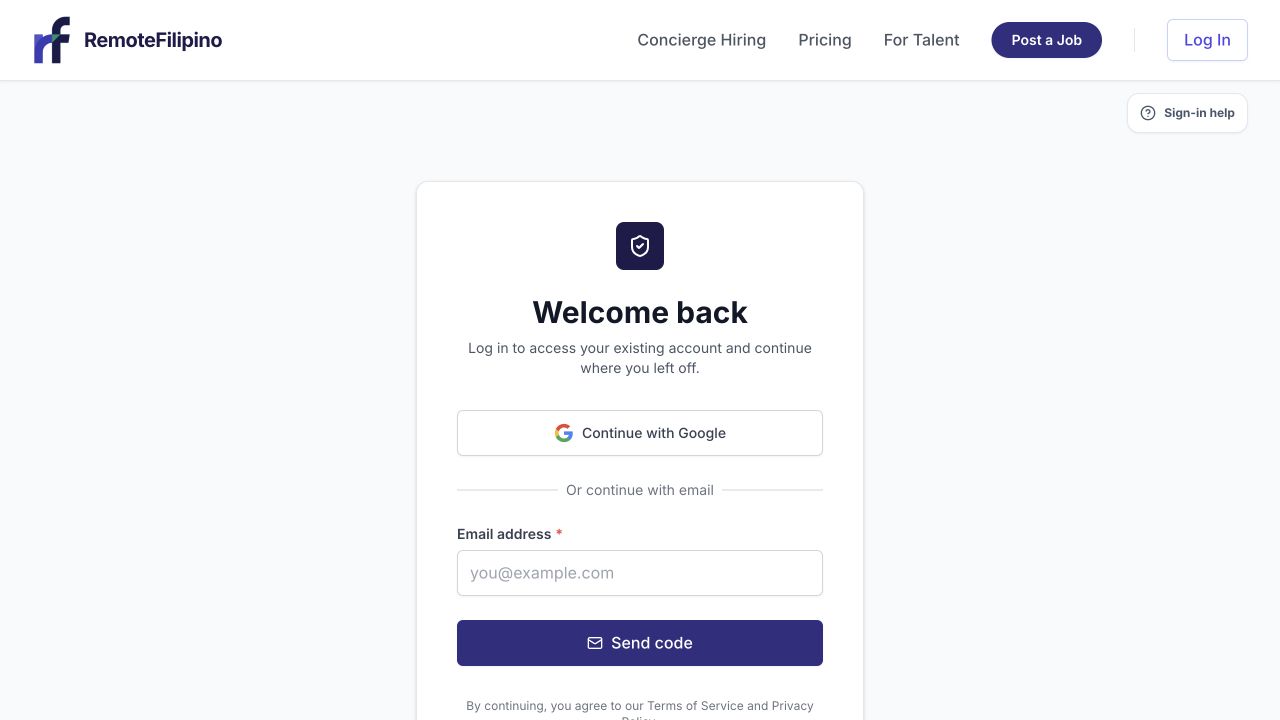
Sign in to the employer account that owns the billing relationship before opening its billing controls.
- Sign in with the employer email that completed or owns the purchase.
- Open Settings.
- Select the billing or plan area.
- Review the product status shown in RemoteFilipino.
- Open the secure customer portal for payment method, invoice, or cancellation actions when available.
Do not share the portal link publicly. It can contain a time-limited session connected to the customer record. RemoteFilipino support will not ask for your password, email code, complete card number, or banking credentials.
What to verify
Review the company and account email, product or access label, status, billing interval, next renewal or end date, payment method summary, invoices, and any cancellation notice. Compare the receipt with the intended company account. If current public Pricing differs from an existing subscription, the checkout terms and billing portal for that subscription are the better record.
Keep receipts for finance reconciliation. The invoice should be handled through the portal or official support process rather than altered screenshots. If billing details need a company address or tax information, use the supported portal fields and verify the resulting invoice.
Update a payment method
Open the portal from a known RemoteFilipino session and use the payment-method controls there. Verify the domain and amount before confirming. Do not send card details through chat or email. A new payment method does not necessarily retry a failed invoice immediately; read the portal state and any next action.
Cancellation, renewal, and access
Cancellation and refund are different actions. Canceling typically changes future renewal according to the date shown in the portal; it does not automatically reverse prior charges. Current access can remain through an already-paid period, but the actual portal and accepted terms control. See Cancellation, refunds, and guarantees before assuming eligibility.
When access ends or payment fails, some employer actions may become unavailable. Previously recorded jobs, applications, conversations, or unlocked profiles can have different retention and access behavior from actions requiring an active entitlement. Confirm what the account shows.
If the portal will not open
Confirm you are in the correct Employer account and disable extensions that block redirects or cookies. Retry in a private window. If no billing record is shown, find the receipt and verify the purchase email. Do not pay again merely because the portal is slow or product access has not refreshed.
Contact support
For a missing invoice, mismatched access, failed portal, or unrecognized charge, include company name, account email, receipt or transaction reference, date, amount and currency from the receipt, expected action, actual screen, and screenshot. Mask full card numbers and other sensitive financial data. For an unrecognized transaction, also contact the payment provider promptly.
Related guides
Was this article helpful?
Tell us whether this answered your question.